Live or staging → LocalWP
Copy your live or staging site into LocalWP: database, themes, plugins and uploads. Then log in locally with that site's username and password.
Local Live Sync moves your WordPress site between LocalWP, staging and live: pull live or staging into LocalWP, push your work to staging, then publish staging to live. Database, themes, plugins and uploads, with a backup of both sites before every database sync.
Choose a direction and press Run.
Copy your live or staging site into LocalWP: database, themes, plugins and uploads. Then log in locally with that site's username and password.
Push your local work to staging to test it, then publish staging to live. Refresh staging from live first if you like. Only new or changed files are sent.
Live + Staging + Local, Live + Staging, or Live + Local. Pick yours and the plugin shows only the sync routes that fit it.
Before every database sync, both sites are backed up. Restore any backup, download it as a .sql file, or delete it, one by one.
Tables are imported into temporary copies and swapped in at the very end in one step. If anything fails midway, the destination is left untouched.
Rewrites URLs and server paths everywhere, including inside serialized and JSON data, so page builders and widgets keep working.
Tick the tables you send, so live orders, comments and form entries stay put. Pushing to live asks you to type its domain first.
Syncs start from your local site, which also relays Staging → Live, so no server ever connects to your computer. Every request is signed with a secret key.
Its own admin menu and admin bar shortcut, a light or dark theme, and one-click updates in Dashboard → Updates.
Real screens from the plugin inside WordPress, shown with sample data. Scroll inside a screenshot to see the whole page.
Install the plugin on your LocalWP site, your live site, and your staging site if you have one. Activate the same license key on each under Local Live Sync → License.
On live and staging, copy the connection string from Local Live Sync → Connections. Paste each one into the plugin on your local site.
Pull live into LocalWP, make your changes, push them to staging to test, then publish staging to live. Every database sync backs up both sites first.
Go Live Pack is an add-on that ships inside Local Live Sync. When a sync launches a site, moves it, or refreshes a test copy, it applies your go-live settings to the destination right after the sync.
Everything in Local Live Sync, plus Go Live Pack. It unlocks on every site that uses the license: nothing extra to install or activate.
Buy Single site + Go Live Pack →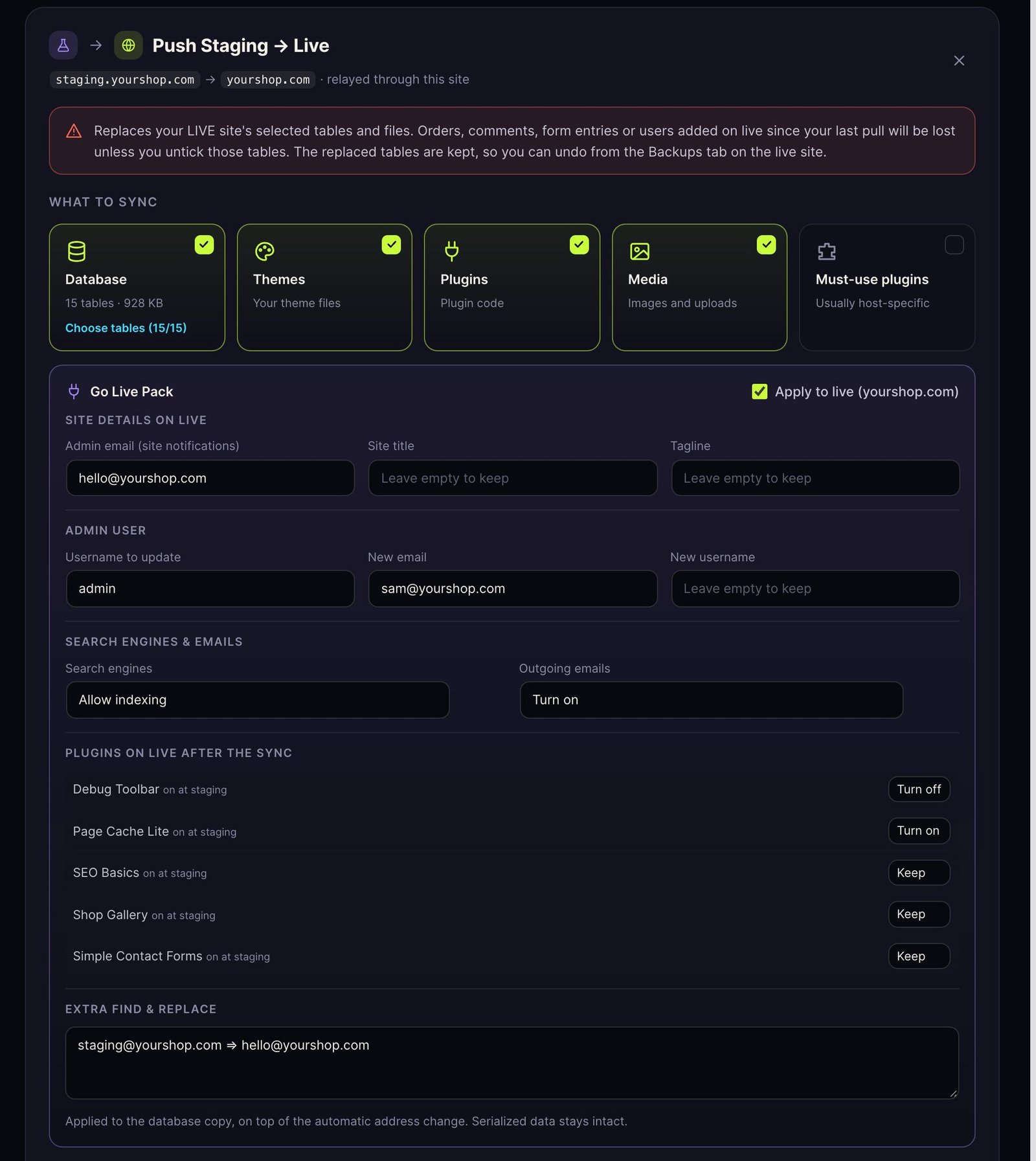
One live site and one staging site, plus your local copies. Pay once, use it for ever, with one year of updates.
Secure checkout on license.myhumannetwork.com. Your key arrives by email. 14-day refund policy.
Everything in Single site, plus the Go Live Pack add-on: go-live settings applied to the destination after each sync. Pay once, with one year of updates.
Secure checkout on license.myhumannetwork.com. Your key arrives by email. 14-day refund policy.
Three live site, unlimited local copies. Pay once, use it for ever, with one year of updates.
Secure checkout on license.myhumannetwork.com. Your key arrives by email. 14-day refund policy.
Everything in Multi site, plus the Go Live Pack add-on: go-live settings applied to the destination after each sync. Pay once, with one year of updates.
Secure checkout on license.myhumannetwork.com. Your key arrives by email. 14-day refund policy.
Every new version released within a year of your purchase installs in one click from your WordPress dashboard, like any other plugin update.
The plugin keeps working exactly as it is, for ever. If you want the newer versions, buy a new license for another year of updates.
Find your key, download the plugin and move your license in your account.
One live site, one staging site and one local site. Activate the same key on each of them under Local Live Sync → License. Every site in a sync must have that same key active: sites with a different key, or none, can’t sync with each other. Local addresses (.local, .test, localhost) don’t use up an activation.
No. Under Connections → “Your setup”, choose Live + Staging + Local, Live + Staging (no local copy: you start syncs from staging), or Live + Local (no staging). The plugin only shows the routes that fit your setup.
Your local site starts the sync and relays the data between the two servers, so neither server has to reach your computer. You can also connect your live site to your staging site’s plugin and deploy straight from staging, which is faster.
Yes, for the database. Before every sync that includes the database, both sites are backed up: the site being copied from gets a full copy, and the site being overwritten keeps the tables that were replaced. Open Backups on that site to restore a backup, download it as a .sql file, or delete it. Each site keeps its last 5 by default. Files are not backed up, so take a host backup before big pushes.
Pushing the database replaces the tables you choose. Untick tables that change on live, such as WooCommerce orders, or pull again just before you push. The replaced tables are kept as a backup on live, so you can restore them.
An add-on that ships inside Local Live Sync. After a sync it applies go-live settings to the destination: admin email and site details, the admin user, search engines, outgoing emails, plugins on or off, and extra find & replace. It unlocks when your license’s plan includes it, on every site that uses that license. See Go Live Pack.
New versions appear in Dashboard → Updates and on the plugin’s License tab, and install in one click while your year of updates lasts. Update every site (local, staging and live) to the same version.
Yes. Click “Deactivate on this site” in the plugin, then activate it on the new site. You can also free it from your account.
Yes, it’s built for LocalWP and works with any local WordPress install: MAMP, XAMPP, DevKinsta, Docker and others.
wp-config.php and WordPress core files stay as they are on each site, must-use plugins are off by default, and Multisite isn’t supported. The plugin’s own folder and settings are never overwritten.
Once a day, every copy contacts our license server with the site address, the plugin, WordPress and PHP versions, a fingerprint of the plugin’s own files, and your license key if you entered one. That lets us check licenses, offer updates and block misuse. It never sends posts, users, orders, files or any database content. The full list is in the plugin’s Privacy section.
Ask for a refund within 14 days of buying, from your account or by contacting us. See the refund policy.
Work locally, test on staging, and go live when you're ready.